What does an Operating System Do?
The programs that we use directly are called applications.
In contrast, operating system software runs in the background - it is not directly used by the user. The applications that we use can interact with the OS to use the computer's resources.
Access to Hardware

Programs are said to run in either user mode or kernel mode.
User mode programs have restricted privileges, and must request hardware access via system calls to the kernel. This allows user programs to be ignorant of the hardware on which they are running.
The kernel acts as an intermediary to allocate resources.
Process Management
A process is a program in execution. We can see the processes that the operating system is running by using system tools:
| OS | Tool |
|---|---|
| Windows | Task Manager or Resource Monitor |
| MacOS | Activity Monitor |
| Linux | top or htop |
This will show us both user processes (applications) and system processes (OS components).
Memory Management
Paging
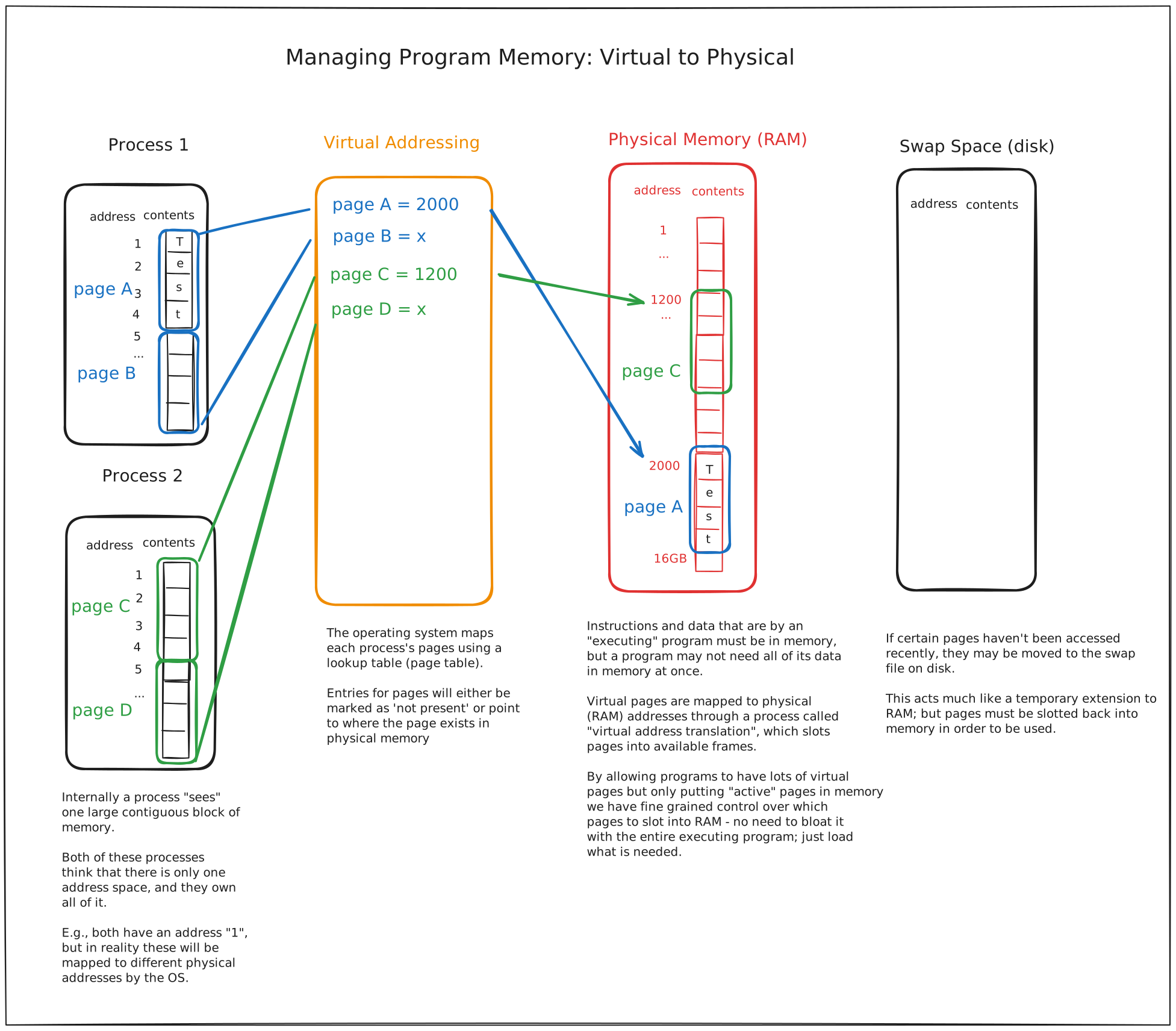
The data from running programs must first be loaded into memory (RAM) before the CPU can use them, but we don't need to load all of the program into memory at once.
Paging is a memory management technique that allows the OS to load parts of a program into memory at different times:
- Programs are split into small, equal-sized chunks called "pages"
- Only the pages that are actively being used are loaded into memory
- When a page is not actively being used but still belongs to a running program, it can be moved to disk (called the page file or swap file)
Paging and Swap Space
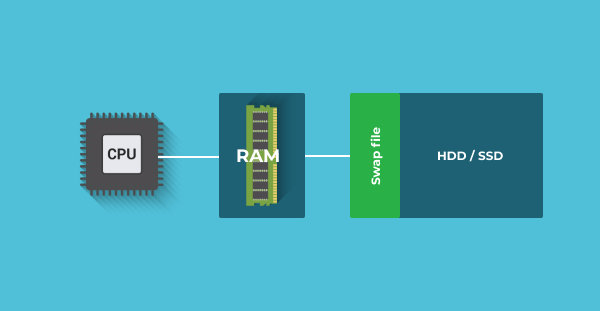
Paging works much like taking books from a shelf. If your program is an encyclopedia, here's how the different storage components map to real-world objects:
| Computer Component | Real-World Analogy | Description |
|---|---|---|
| Hard Drive | Bookcase | Long term storage for everything on the computer |
| Swap Space | Closest shelf within bookcase | Temporary storage for active program, but still on disc |
| RAM | Desk | Resources at hand for current process |
| CPU | You | Can only read one page at a time |
Thrashing
Swapping pages between RAM and the swap file on disc is an expensive operation!
When the program spends more time swapping pages than actually running, it is said to be thrashing.
A large swap file is not a substitute for more RAM!
Virtual Memory
In early computers, programs had to know exactly where their data was physically stored in memory. This was a problem because one program might accidentally overwrite another program's data.
Virtual memory creates a simple way for programs to work with memory by separating two things:
- The memory addresses that programs use to access data (virtual addresses)
- The actual physical locations in RAM or on disk (physical addresses)
Each program gets its own set of virtual addresses starting at zero and going up in order. The operating system handles converting these virtual addresses to real physical locations. This system:
- Lets programs work with memory without knowing where data actually is
- Prevents programs from accessing each other's memory space
- Allows the OS to move data between RAM and disk as needed
- Makes it possible to run programs even when RAM is limited
In other words, the OS acts as a middleman between the program and the physical memory.
Safe Memory Access
One of the most important jobs of the OS is to protect the memory of one program from another. A user program cannot directly access memory - it must request the OS to access memory on its behalf. This is done through system calls.
This security system is crucial because malicious programs often try to exploit memory access. For example, many damaging computer viruses work by attempting to bypass these protections to overwrite the memory of other programs with their own code. If successful, they can inject malicious instructions into running programs, potentially taking control of the system.
Multitasking OS
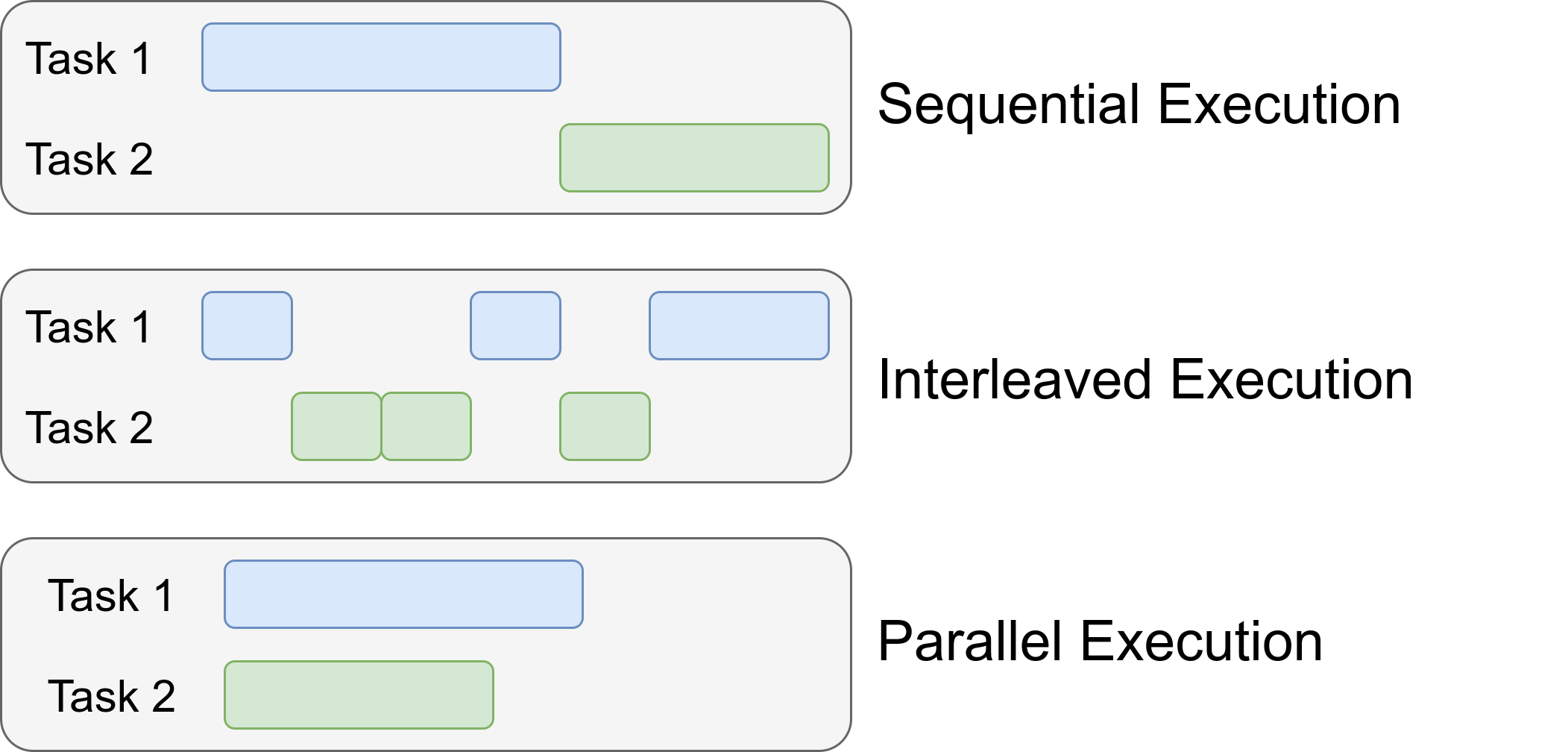
Early operating systems were single-tasking - they could only run one program at a time. A program may take two minutes to run, so the user would have to wait two minutes for the program to finish before they could run another program.
Solution:
Multitasking is when the OS switches between programs quickly, giving each program a small slice of CPU time to run. This is also called time-sharing.
Scheduling is the process of deciding which program should run next.
This rapid switching between programs is called context switching.
All of this happens so fast that it creates the illusion that multiple programs are running simultaneously, even if there is only one CPU.
Interleaved Execution
Iterleaved execution is a term that describes the way that the OS switches between programs quickly. It works on a system of interrupts.
Just like a student working on homework might be interrupted by a phone call, a program might be interrupted by an interrupt signal from the OS. This tells it that it's time to switch to another task.
Multitasking vs Parallel Processing
Parallel Processing is when the OS runs multiple programs at the same time. True parallelism is different from multitasking - with parallelism multiple operations may be happening at any given point in time within the computer.
All modern operating systems can now handle both multitasking and parallel processing. They do this by using multiple CPUs, and multiple cores within a single CPU. Each core might run a different program at the same time.
Input/Output (IO)
The OS also manages the input and output devices.
Buffers
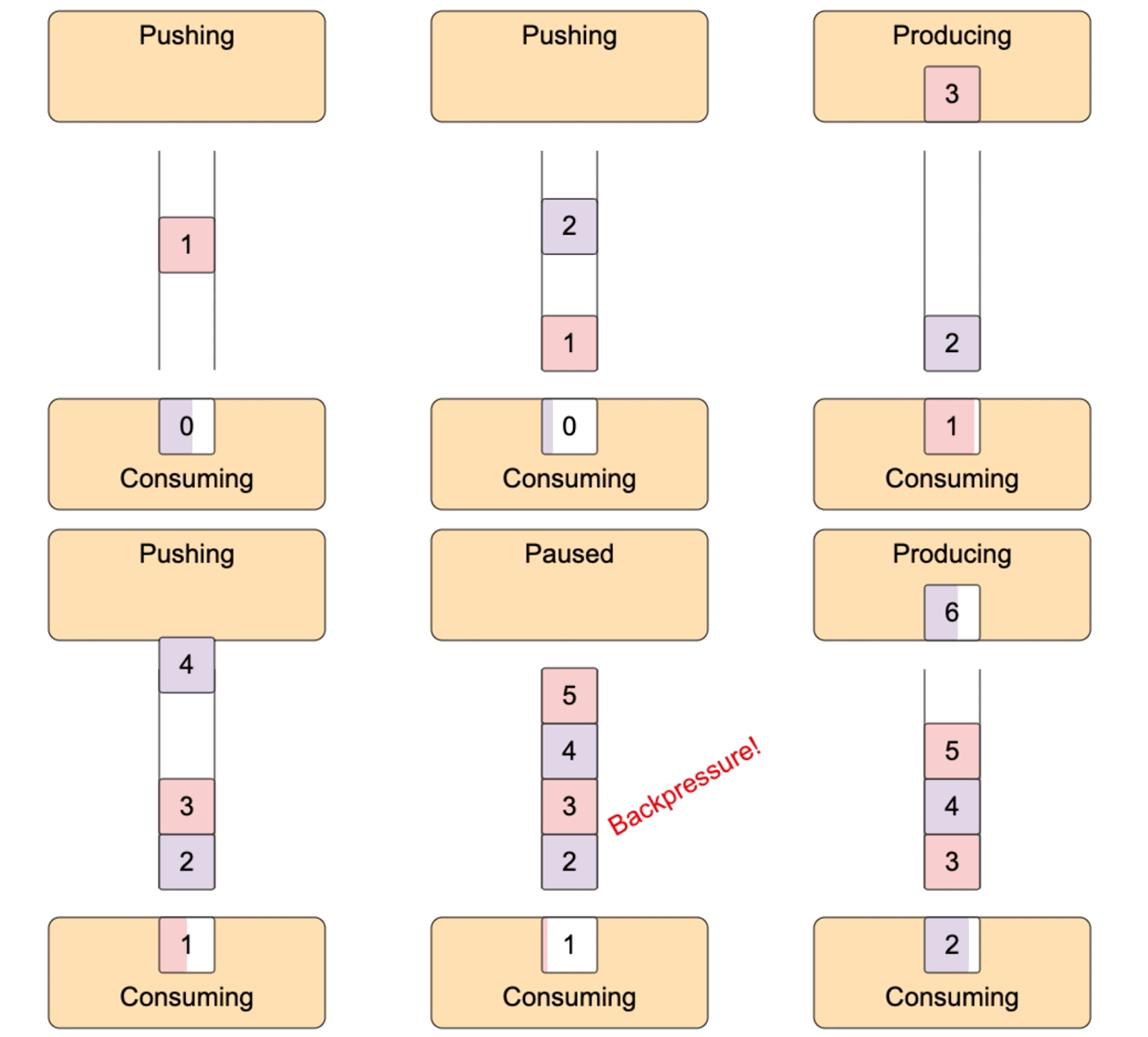
The OS can allocate buffers to store data that is being transferred between the device and the computer. Buffers are temporary "waiting areas" that help manage data flow between components that operate at different speeds. They act much like a queue. For example:
- When you type quickly on a keyboard, the keystrokes are stored in a buffer until the computer is ready to process them
- When you move your mouse, the cursor location is stored in a buffer until the computer is ready to update the screen
- When reading from a hard drive, data is stored in disk buffers to help manage the speed difference between the fast CPU and slower disk
Device Drivers
Device drivers are specialized programs that form a layer between hardware and the operating system. These drivers translate the OS's commands into hardware-specific instructions, and the other way around.
- Applications don't need to know anything about specific hardware
- The OS can treat different devices in similar ways
- Hardware can be updated without changing the OS or applications
Device Drivers in Action
Think about all the different mice you might use - wireless, trackball, even your laptop's touchpad. Each one works differently internally, but the operating system treats them all the same way.
This is the magic of device drivers! Instead of your OS needing to know about every single mouse design ever made, each mouse comes with (or Windows finds) a small program called a driver that translates between the mouse's specific way of working and the operating system's standard way of handling input.
File Systems
A file system is a way of organizing and storing files on a computer.
When you look at Windows Explorer or MacOS Finder, you are seeing the file system of the computer.
Disk Partitioning
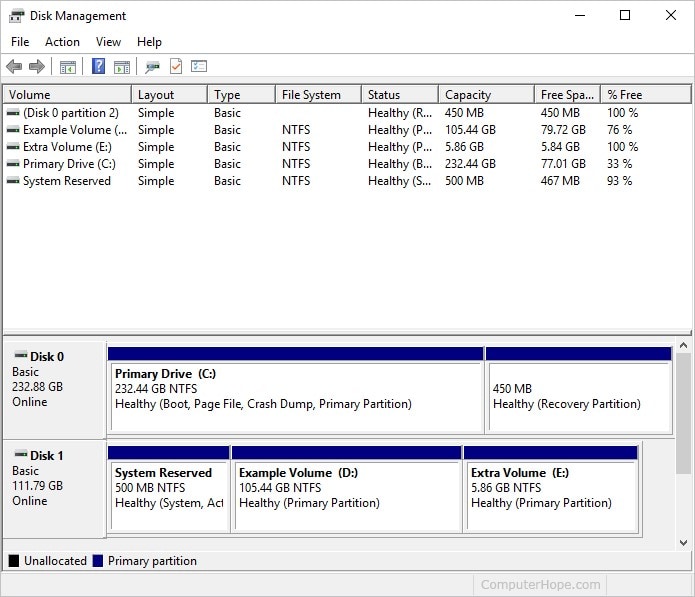
A physical disk drive can be divided into multiple logical sections called partitions. Each partition functions as an independent storage unit, appearing to the operating system as a separate disk drive.
This allows you to:
- Install multiple operating systems on a single physical disk
- Organize data more effectively
- Separate system files from user data
Daily Check-in:
For Windows user, open the Disk Management tool and view the partitions.
For MacOS user, open the Disk Utility tool and view the partitions.
Submit a screenshot of what you see.